How to Download Attachments Safely on TempZap
You have just created a new account using your TempZap email and now receive an email confirming your free trial subscription. However, there is a paperclip attached to the email. This paperclip indicates that the email has an attachment in the form of a document or image file. You hover over the download icon and remember the cybersecurity advice you often hear: "Do not download attachments from unfamiliar sources."
While this is great advice, you may still need to download the file. Perhaps it's a code file your software developer sent to you, or maybe the event ticket you want to test for a new client. But you don't want to risk infecting your device or giving away personal information to a potential scammer. How can you safely download files?
This article explains how TempZap keeps your downloads safe and what steps you can take to ensure your download is completely secure.
🛡️ Golden Rule of Temp Email Attachments:
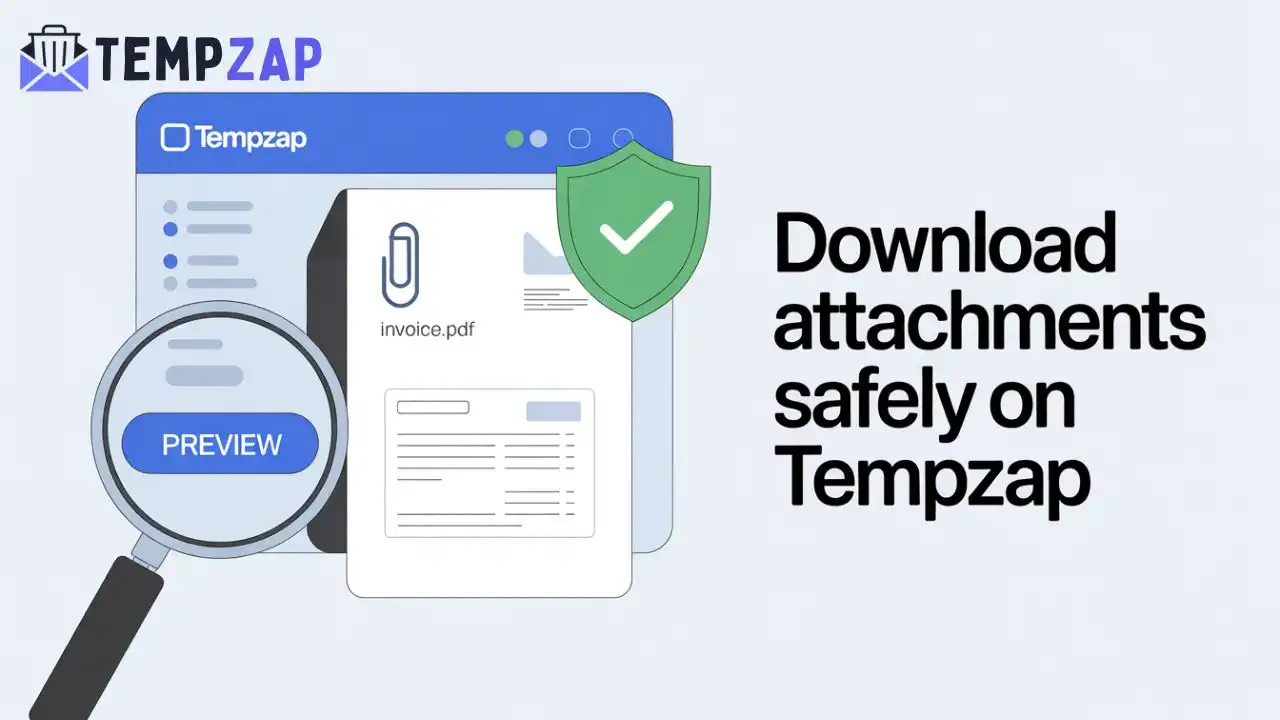
Always Preview First. TempZap includes a built-in document and image viewer. Never download a file to your computer unless you absolutely have to. If you can read it in the browser preview, you avoid 99% of potential threats.
Step-by-Step: How to View and Download Attachments on TempZap
Here is the exact workflow to follow whenever you see the paperclip icon in your TempZap inbox. Follow these steps in order for maximum security.
Step 1: Identify the Attachment in the Inbox List
Even before opening the email, the first thing you will see that gives you an idea that there is a file in it is the interface of TempZap. Find the paperclip icon 📎 beside the subject line of your email. It gives you an instant message that the email has a file attached. Be cautious of emails coming from unknown senders with subjects such as "Invoice_URGENT.exe".
Step 2: Open the Email and Locate the Attachment Panel
Click the email subject line to access the content. Then scroll through the text until you come across the attachment, which may be found in one of the following forms:
- After the message body: There is usually a box with the name of the attachment, its size, and a "Preview" or "Download" button displayed.
- Within the message body: In some cases, there might be an attachment that opens up as a hyperlink like "Click here to view your ticket".
Pro Tip: Be sure to check the File Extension. Any attachments with extensions such as .exe, .scr, .bat, and .js are executable files. These should never be downloaded from an email service provider’s temporary inbox account. TempZap blocks such attachments, but better be safe than sorry!
Step 3: Use the "Preview" Feature (The Safest Method)
This is what makes TempZap superior to basic email. Rather than selecting “Download,” select the “Preview” option (magnifying glass icon).
Here's what will follow:
- For PDF files: TempZap will present you with the PDF preview in the secure sandboxed reader within your tab in your web browser. The file will be presented as an image-like layer. No scripts or macros can run here.
- For images (PNG, JPG): Your image will be displayed using the lightbox popup functionality. Key detail: when displaying the image, TempZap removes all metadata (Exif data). This means no one can know whether you viewed the picture or not, and no location coordinates (GPS) will be accessible either.
Once you are able to view the document or image within the preview, you are done. Now, you can view the file content safely without downloading any external file on your computer.
Step 4: Downloading (Only If Necessary)
In exceptional instances, when you might require the file for uploading or printing purposes, the following is what you should do when downloading the file:
- Click "Download," then wait for the file to download on your computer, specifically into the "Downloads" folder.
- DO NOT DOUBLE CLICK THE FILE YET. Access your "Downloads" folder.
- SCAN FOR VIRUSES using your preferred antivirus software. Even if you are using Windows Defender, scanning the file with a right click only takes two seconds.
- OPEN USING SAFETY APPLICATIONS such as browsers like Chrome or Edge, rather than Adobe Acrobat.
Understanding Common Attachment Threats in Temporary Emails
Because temporary email addresses are public and unverified, spammers sometimes target them with "spray and pray" malware campaigns. Here are the specific red flags to watch for in your TempZap inbox:
1. The Double Extension Trick
A file named Invoice.pdf.exe. Windows sometimes hides the ".exe" part by default. It looks like a PDF, but it's a program. If you see a file name with two periods like this, immediately delete the email.
2. Password-Protected ZIP Files
Email body: "Your document is secure. Password is 1234." This is a classic malware delivery method. The password protection prevents TempZap's automated scanner from checking the contents. Never download a password-protected ZIP from an unknown temp email sender.
3. Suspiciously Small File Size
If an "Invoice" PDF is only 2 KB, it's likely just a link to a phishing website disguised as a file. Preview it first. If the preview shows just a link saying "Click here to view document," do not click the link. That's a phishing attempt, not a real attachment.
🔗 Related Reading: If you want to understand why phishing links are dangerous even inside a temp inbox, read our deep dive: How Hackers Use Email and How to Stay Safe.
How TempZap Keeps Attachments Clean Before You See Them
You aren't completely on your own in this fight. TempZap's infrastructure performs several silent checks before the email even reaches your browser:
| Security Layer | What It Does For You |
|---|---|
| SpamAssassin Filtering | Scores incoming emails based on known spam patterns. High-risk attachments are often quarantined before you see them. |
| ClamAV Virus Scanning | An open-source antivirus engine that scans attachments for known malware signatures. If a virus is detected, the attachment is blocked and replaced with a warning notice. |
| Content Sandboxing | The "Preview" feature renders files on TempZap's servers, not on your local machine. Your computer only receives a safe, static image representation of the document. |
| Tracker Pixel Removal | Email marketers often embed invisible 1x1 pixel images to see if you opened the email. TempZap blocks these by default, preserving your privacy. This is covered more in our article: Does Temporary Email Show My IP Address? |
Troubleshooting: Why Can't I Preview an Attachment?
Sometimes, the user receives an error when previewing a file. These errors can happen for the following reasons, together with recommended actions:
- File Type Not Supported: TempZap supports files in PDF, JPG, PNG, GIF, and simple text formats (.txt). Files that are not supported include .DOCX (Word) and .XLSX (Excel). Action: Don’t download unless you knew you would receive Word documents. Use Google Docs in a private tab in your browser to upload and open the file without downloading it to your computer.
- Damaged File: Sometimes, a file is corrupted. It’s more likely than not if it was part of spam. Solution: Trash the email.
- File Size Too Big: The maximum allowed size of the file by TempZap is limited (often to 10 MB).
Best Practices Summary: A Checklist for Safe Downloads
Take a screenshot of this checklist. This is your ticket to security every time you attach anything from the TempZap app.
✅ Sender Verification: Do I know the person or company?
✅ File Extension Check: Does it have an .exe, .js, or .zip extension? If Yes -> DELETE.
✅ Preview Before Downloading: Always go for the "Preview" option first.
✅ Local Scanning: Right-click the file and scan before opening it.
✅ Use a Sandbox: If uncertain, consider opening the files on an incognito browser or a virtual machine.
Using the steps above, you will enjoy all the benefits of TempZap without putting yourself at any risk. With this service, you have absolute control over everything you do. All it takes is refreshing the page and sending that attachment back to oblivion.