How to Add Mail to Your Favorite List on TempZap
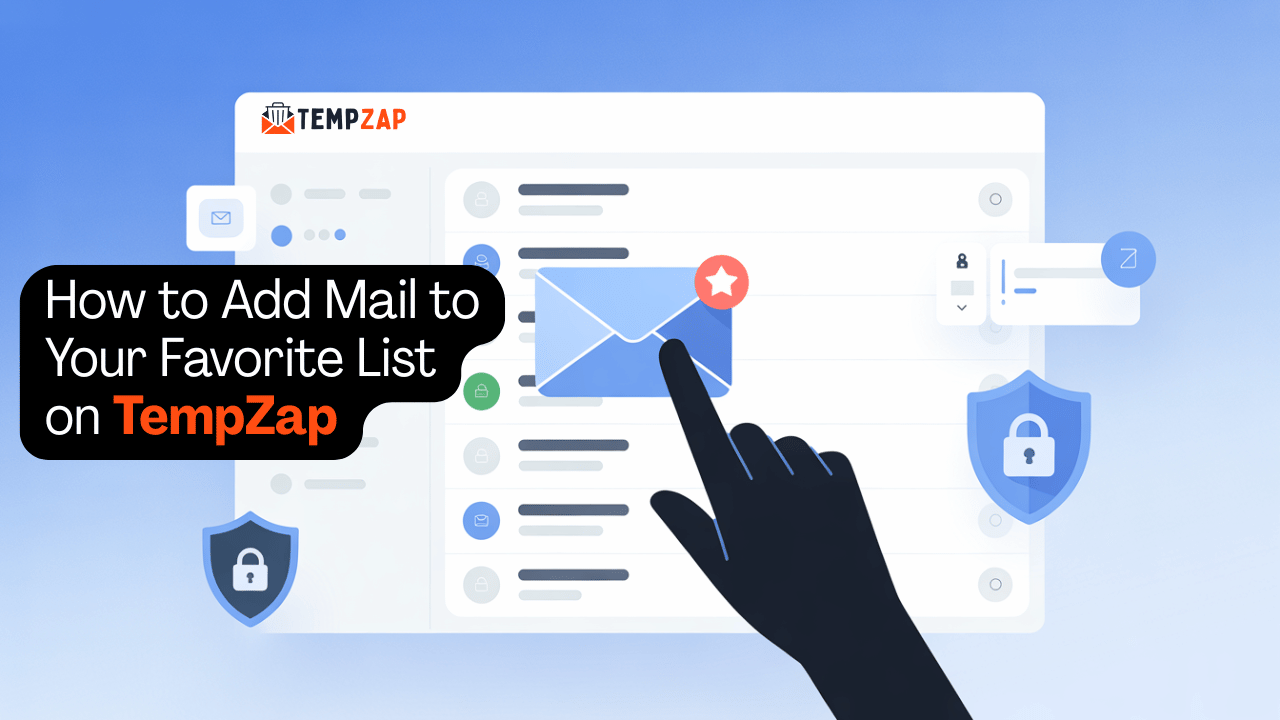
How to Add Mail to Your Favorite List on TempZap
It may be challenging at times to manage your temporary inbox because you receive several emails for various services. In order to make managing emails easier for yourself, TempZap offers the Favorite functionality which enables you to flag important emails and access them whenever necessary.
Using the Favorite functionality, you can tag emails as important so you can refer to them later on if you require them. You can learn more about how to add emails to your favorite list using TempZap in this guide.
Why Use the Favorite Email Feature?
A temporary inbox can also be used to receive emails containing some sort of verification, confirmation, or a one-time password. On occasions when these emails are important, the user would want to preserve them for a long time.
The Favorite option in TempZap can prove to be extremely useful because it allows highlighting important emails in order to prevent them from being lost among incoming messages.
Some advantages include:
- Finding important emails quickly
- Preserving emails containing verification or confirmation messages
- Organizing a temporary inbox
- Preventing important data from getting lost
This option is highly useful for people who send temporary emails regularly.
Step-by-Step Guide to Add an Email to Favorites
Adding an email to your favorite list on TempZap is very simple. Follow these steps:
1. Open Your TempZap Inbox
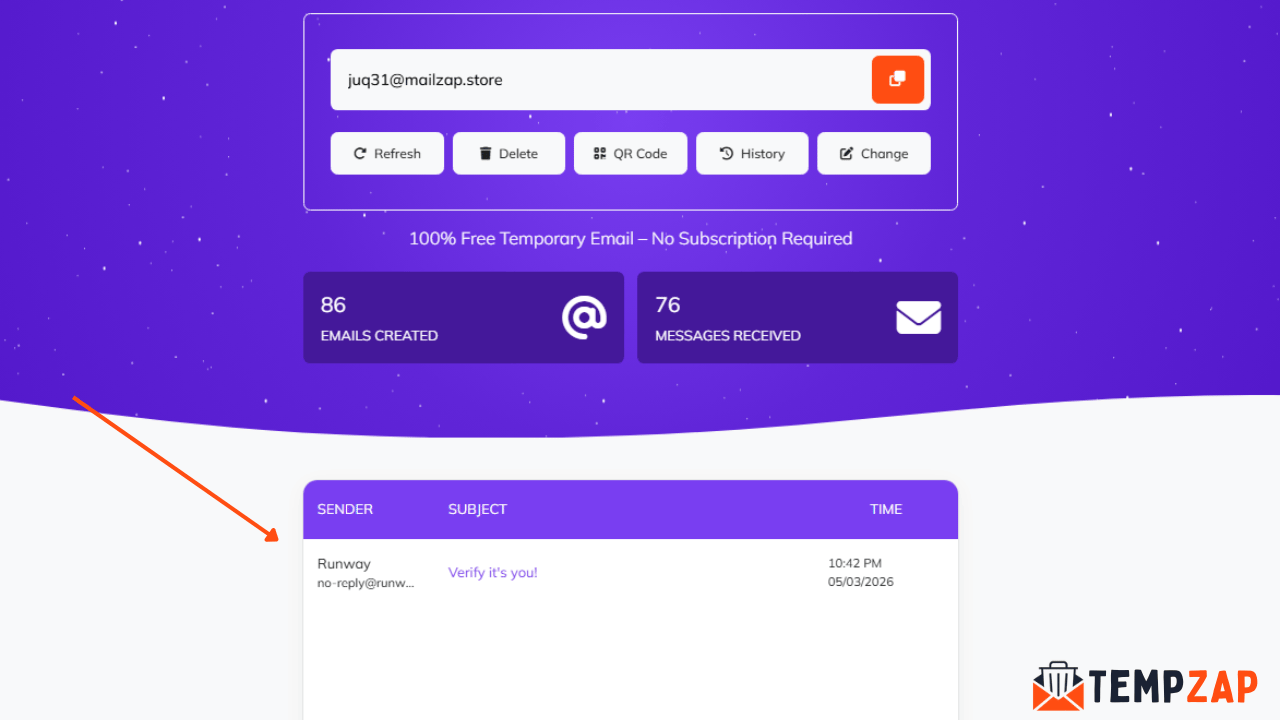
First, visit TempZap and generate your temporary email address. Your inbox will automatically load and start receiving emails.
2. Wait for Incoming Messages
Once you use your temporary email to sign up for a website or service, incoming messages will appear in your inbox.
3. Find the Message You Want to Save
Locate the email you want to keep. This could be a verification email, password reset message, or any important information.
4. Click the Favorite Icon
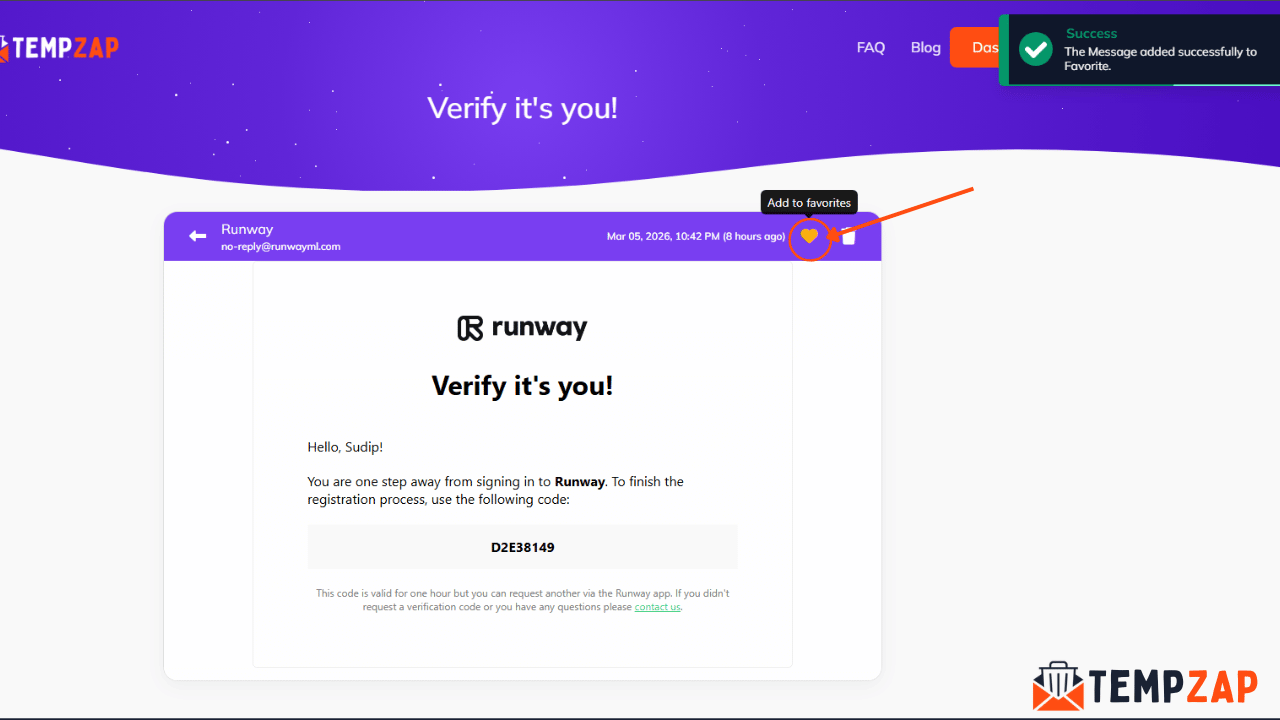
Next to each message, you will see a favorite or star icon. Click this icon to add the email to your favorite list.
5. Access Your Favorite Emails
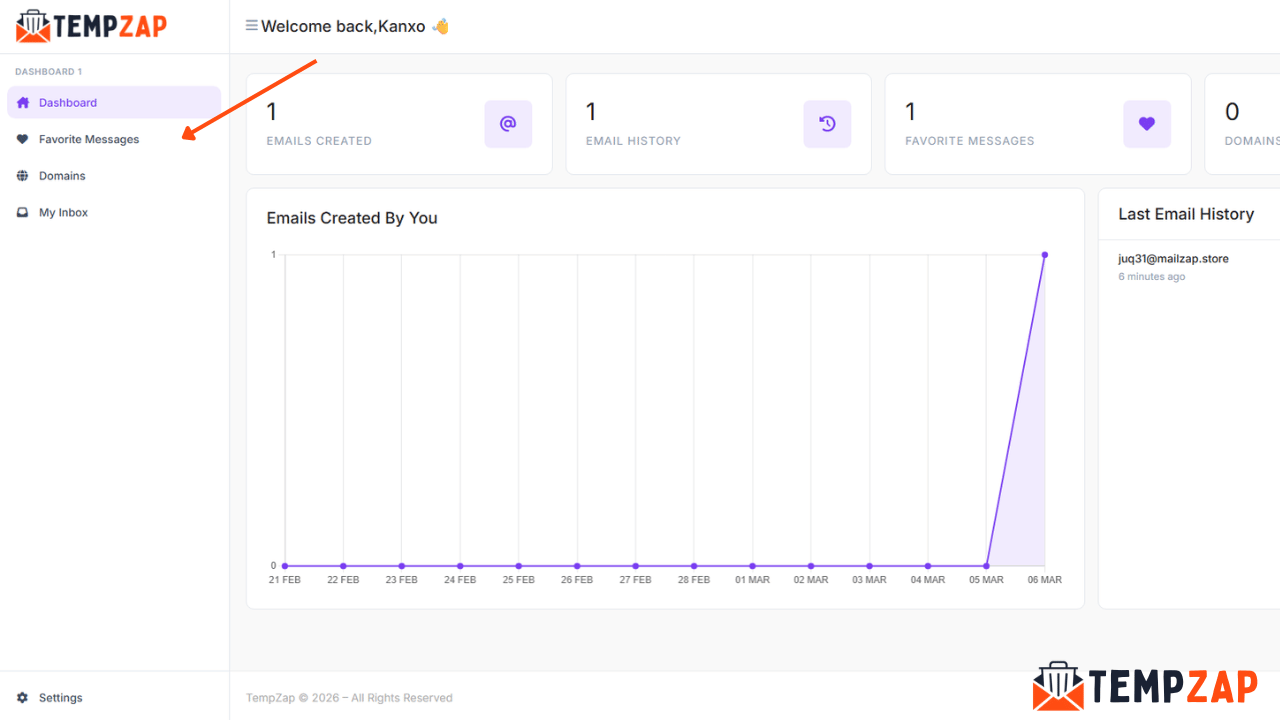
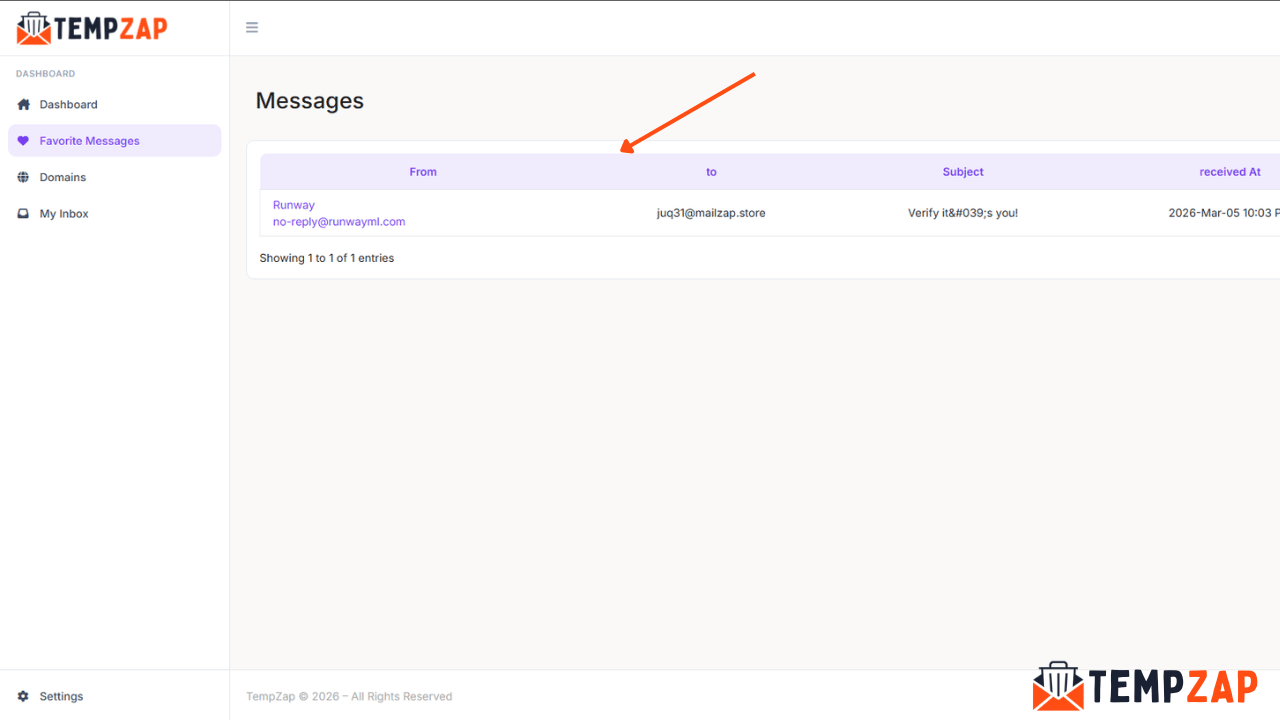
Once added, the message will appear in your Favorite Messages section inside your dashboard, allowing you to easily access it anytime.
When Should You Use the Favorite Feature?
The Favorite feature is useful in many situations. Here are a few examples where it can help:
Saving Verification Emails
Sometimes you may need to recheck verification links or confirmation details. Adding them to favorites ensures they remain easy to find.
Keeping Important OTP Messages
If you receive a one-time password for an account or service, saving the message can help if you need it again shortly.
Organizing Multiple Messages
Users who receive many emails can quickly organize their inbox by marking important messages as favorites.
Tips for Managing Your Temporary Inbox
If you want to get maximum benefit out of using temporary email, here are some suggestions for you:
- Consistently check your inbox and delete unwanted emails
- Utilize the "favorites" option for important emails that may be useful in the future
- Refrain from giving away personal information
Opt for temporary email for signing up, testing, and newsletters
Why TempZap Makes Email Management Easy
TempZap aims to offer a safe and easy temporary email service. The system allows you to get to your inbox immediately, create emails fast, and even bookmark your emails.
This means that you will be able to create an email address, read emails, and bookmark the ones you need all without having an account.
Conclusion
TempZap’s Favorite email feature is an easy-to-use yet very efficient method that makes it easier for you to sort out the temporary email box. Using the favorite function allows you to quickly find the verification emails, one-time passwords, and other important information by adding those messages to the favorites folder.
Learning to utilize this feature is especially helpful when you use temporary emails often.
Start using TempZap today and experience a faster, cleaner, and more organized temporary email service.